
MetaTrade G6 Bot Guide – Activate, Trade, and Analyze Signals
The MetaTrade G6 Bot represents the latest generation of Metaset’s automated AI trading technology.
Designed for high-frequency micro-trading, G6 analyzes short-term price fluctuations in major cryptocurrencies like BTC/USDT and ETH/USDT — generating a new signal every two minutes.
Each signal predicts the short-term direction of the market, executes trades instantly, and finalizes results at the end of its 2-minute cycle.
Unlike manual trading, G6 operates 24/7, automatically analyzing volatility, momentum, and price action to identify profitable entry and exit points.
⚠️ Important Note: Once the bot is activated, the trade starts immediately and cannot be stopped, paused, or edited.
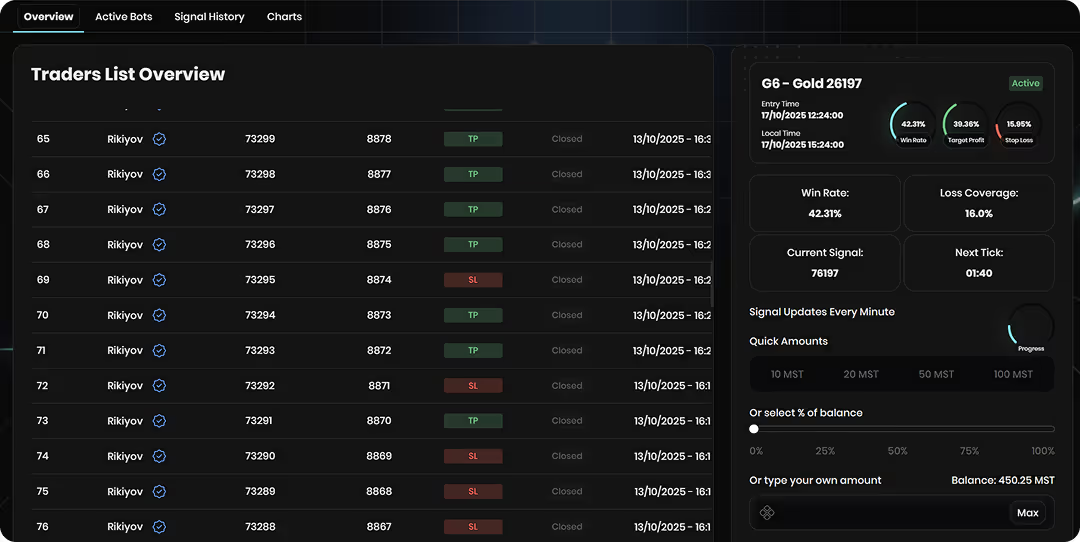
Key Features of G6
- AI-driven signals every 2 minutes
- Immediate execution — no manual action needed after activation
- Loss coverage (exclusive to G4, G5, and G6 bots)
- Supports manual and automatic trading modes
- Transparent performance tracking via Signal History
- Free access — signals are visible to all users
- Profit potential: 60%–320% on successful (TP) signals
- Live BTC/ETH chart integration with TradingView
Understanding the G6 Interface
The G6 bot section includes four main tabs:
1. Overview
2. Active Bots
3. Signal History
4. Charts
Let’s explore what each tab does.
1. Overview Tab – Your Main Control Center
The Overview page is where you activate, monitor, and analyze your G6 bot in real time.
a. Performance Stats
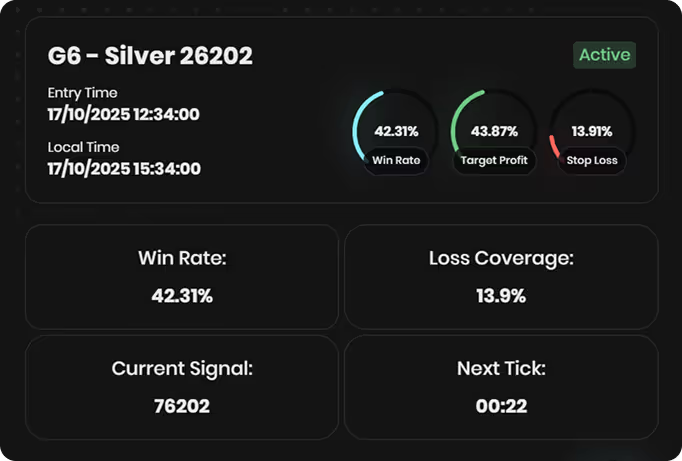
At the top of the page, you’ll find live trading statistics:
- Win Rate: The bot’s overall success percentage
- Target Profit & Stop Loss: Average performance metrics
- Loss Coverage: Portion of loss automatically compensated by Metaset
- Next Tick Timer: Countdown until the next AI signal is generated
b. Activation Options
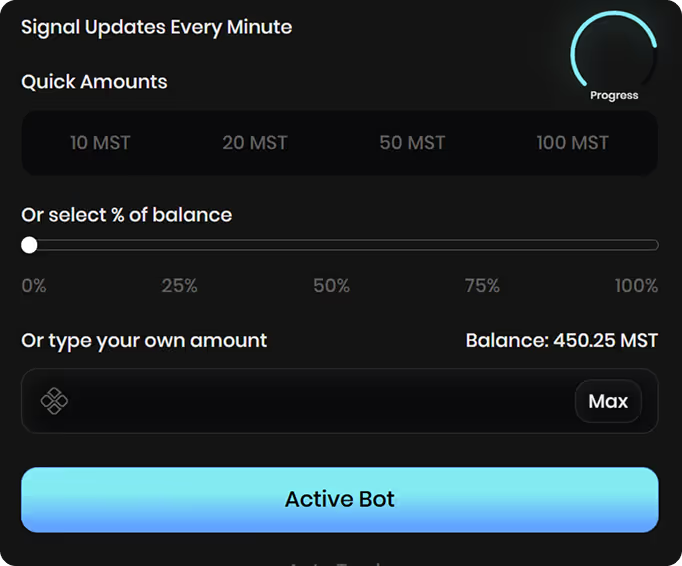
Below, you’ll see multiple activation controls:
- Quick Amounts (10, 20, 50, 100 MST) – Instantly select a predefined trading amount.
- Percentage Slider – Choose what percentage of your total balance to invest.
- Manual Input – Type in your custom investment value.
After selecting your amount:
➡️ Click “Active Bot” to initiate the bot.
➡️ The bot begins trading immediately once activated.
⚠️ Note: You cannot cancel or edit the bot after activation — the AI will complete its signal cycle automatically.
c. Auto Trade Mode
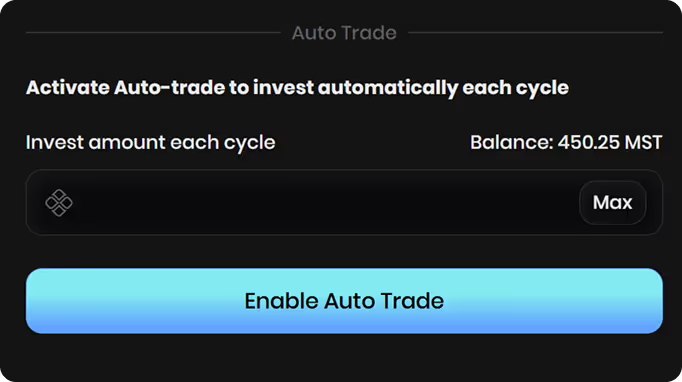
You can also enable Auto Trade to automatically reinvest a chosen amount every signal cycle.
This allows the bot to keep trading continuously without manual confirmation.
Just set the amount and click “Enable Auto Trade.”
Traders List Overview
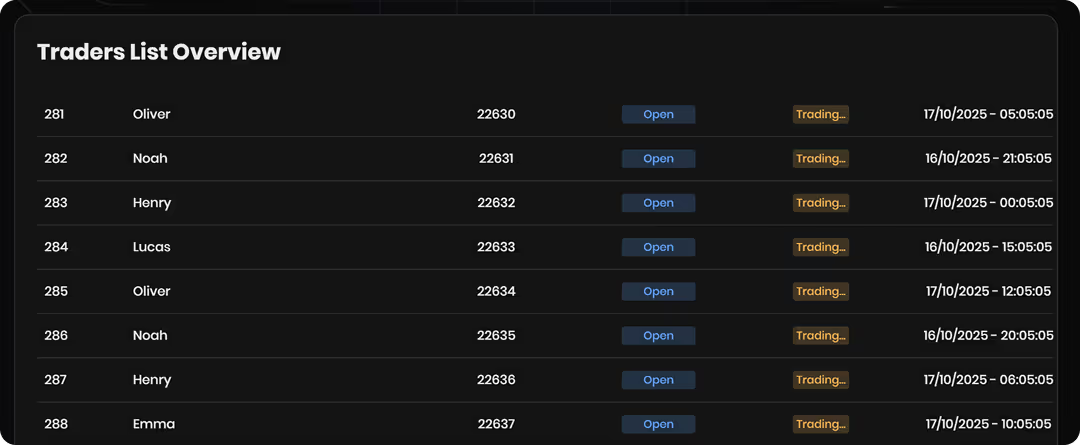
At the bottom of the Overview page, you’ll see a live Traders List Overview table.
This displays all currently active G6 traders, including:
- Trader nickname (anonymized)
- Signal ID
- Trade status (Open or Trading)
- Start time
This section offers full transparency, showing that every user operates under the same live signals simultaneously.
Bot History Section
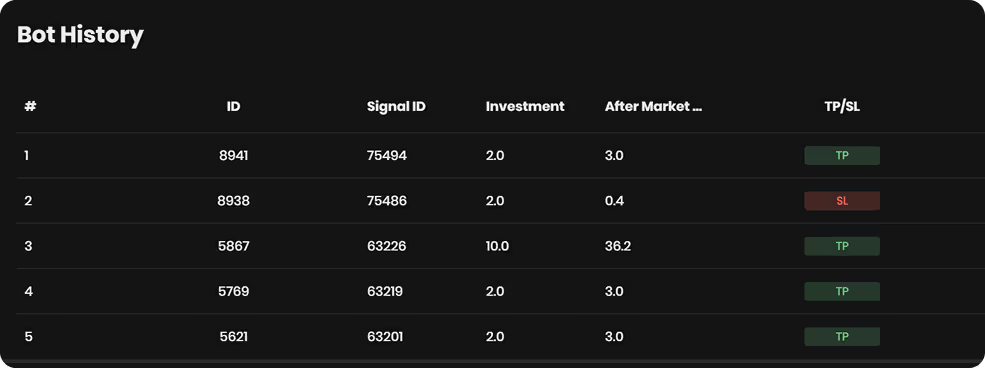
Below the Traders List is the Bot History table, showing your completed trades.
Each record includes:
- Bot ID and Signal ID
- Investment amount
- Resulting value after the market movement
- TP/SL status (Take Profit or Stop Loss)
- State (Closed or Active)
- Timestamp
This section helps you track performance and verify results.
2. Active Bots Tab
The Active Bots tab displays your currently running G6 bots.
Each bot card includes:
- Bot name and ID (e.g., Silver - 8942)
- Realized Profit in MST
- Risk Level and Initial Amount
- Activation Time
The progress loader below the bot symbol shows real-time status updates as the bot completes trading cycles.
3. Signal History Tab
This tab logs every signal generated by the G6 AI.
You’ll find columns for:
- Signal ID
- Bot Type (G6)
- Signal Type (Silver / Gold)
- Provider (metaset.ai)
- Success Rate
- Target Profit / Stop Loss
- Entry Time
Each signal type (Silver or Gold) represents a distinct AI trading algorithm with varying volatility sensitivity and return potential.
✅ Use this history to analyze patterns, assess bot accuracy, and understand the performance trends behind the AI’s decisions.
4. Charts Tab
The Charts section integrates live TradingView analytics for BTC and ETH.
Here, you can:
- View market stats like volatility, dominance, and trading volume.
- Switch between BTC and ETH charts.
- Track candlestick movements in real time.
- Use this data to understand how market shifts impact G6 signals.
The charts provide full transparency — letting you visually verify market moves that influenced the bot’s recent trades.
How G6 Bot Works
- Every 2 minutes, G6 AI scans crypto market data — including price action, volatility, and liquidity depth.
- The AI predicts whether the next 2-minute market move will rise (TP) or fall (SL).
- Once a signal is issued, the bot trades instantly.
- After 2 minutes, the result is finalized and displayed on your dashboard.
📊 All signals are recorded in the Signal History, so you can analyze performance over time.
Risk and Coverage Policy
- The G6 bot includes Loss Coverage, meaning a percentage of your loss (typically 10–15%) is automatically absorbed by Metaset.
- This protection is exclusive to G4, G5, and G6 bots.
- Other bots (Low-Risk, Risk-Free, Owner) do not include loss coverage.
Important Notes Before Activation
- Bots cannot be paused, stopped, or edited once activated.
- Each trade is executed automatically — the user cannot intervene mid-cycle.
- Start with smaller trade amounts to familiarize yourself with signal patterns.
- G6 operates statistically — it does not rely on news or long-term trends.
Conclusion
The G6 Bot delivers a cutting-edge automated trading experience powered by rapid AI-driven signals and transparent performance data.
Its 2-minute trading cycles, loss coverage, and auto-trade options make it ideal for traders who want consistent exposure to market opportunities without manual execution.
Whether you’re experimenting with short-term trading or aiming for compounding profits, G6 combines precision, automation, and transparency in one powerful system.
Related FAQs
the minimum deposit amounts for each payment method:
🔹 For TRX deposits: The minimum deposit amount is $10 equivalent in TRX.
🔹 For USDT (TRC20) deposits: The minimum deposit amount is $50.
If your deposit is below these minimum limits, the funds will be considered as network fees and will not be added to your balance. This is a TRON network policy and is not controlled by Metaset.
Additionally, for every deposit, Metaset assigns a new wallet address. Ensure you always use the latest wallet address displayed on your deposit page. If you deposit funds to an old address, only the first deposit will be processed, and subsequent deposits to the same address will not be credited.
Don’t miss your chance to trade smarter, not harder
Join Metaset and take your trading decisions to the next level with data-driven confidence